Searching and Filtering
Step by step to filtering data
The Filter Panel, located on the left of the screen, allows you to refine your search and pinpoint the exact data you need.
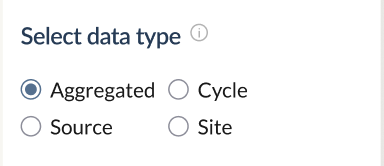
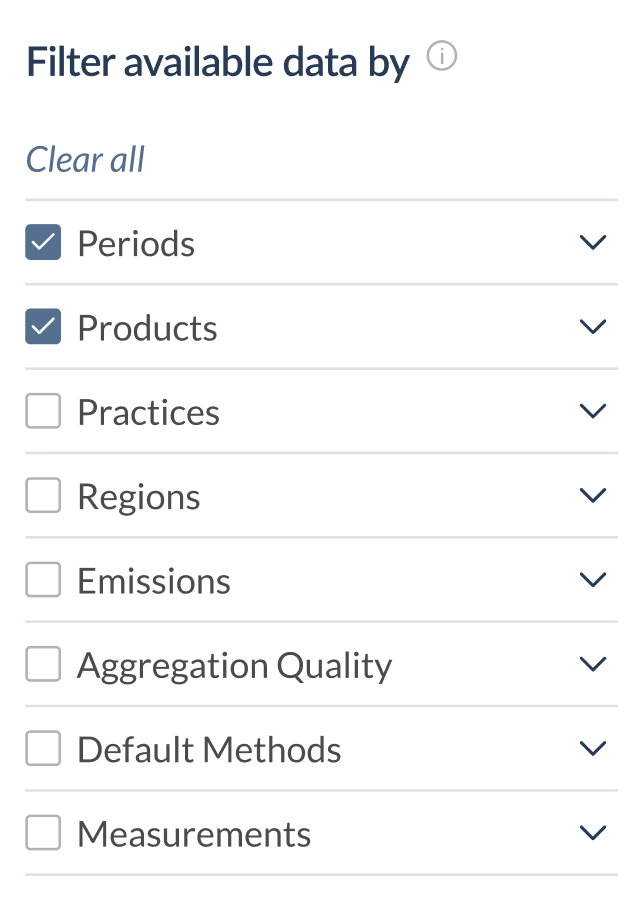
Under ‘Filter available data by’, click on a main category to select all items within it, or expand a category to reveal its subcategories and select specific items.
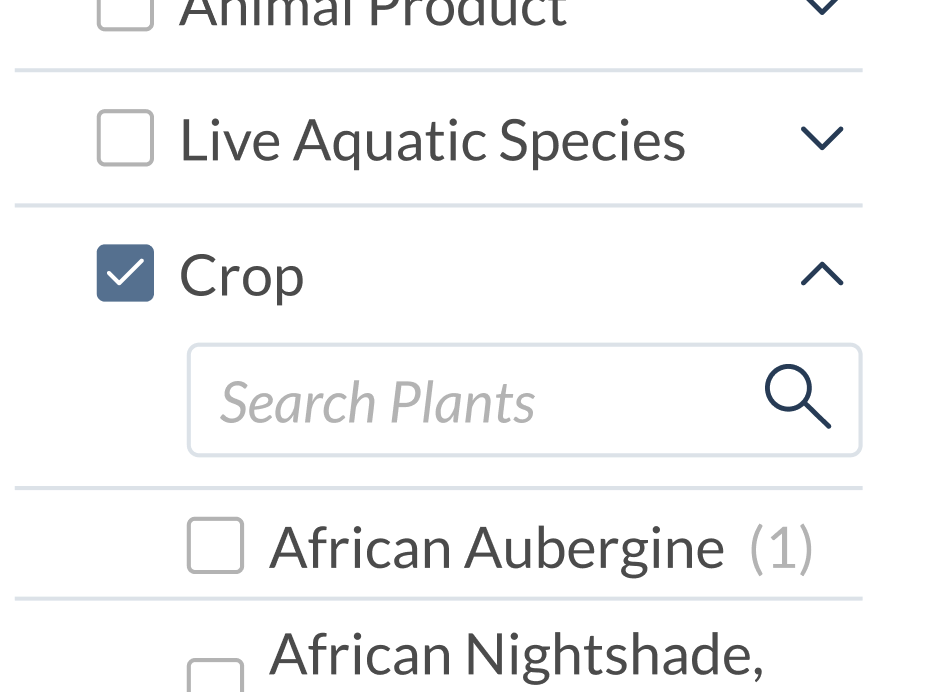
Use the search bar within each subcategory to quickly find specific items.
To view an explanation of any filter option, hover over the information icon beside the section header.
The result listings will automatically update to reflect your selected filters, though longer queries may take a few seconds to load.
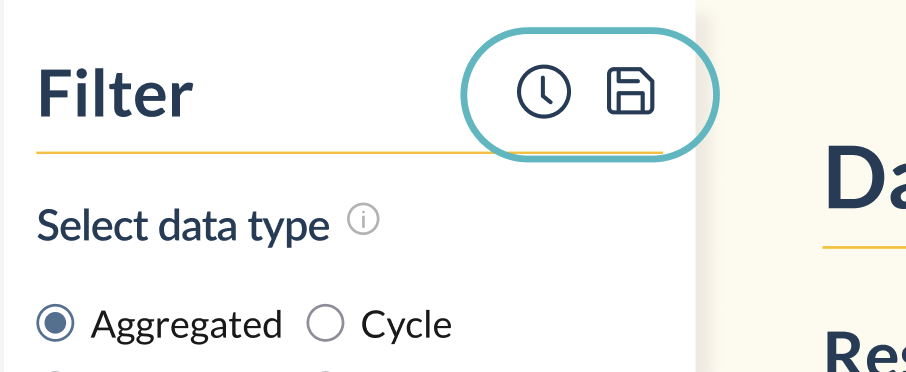
If you are signed in, click the “save”icon at the top right of the filter panel to save your current filter settings for future use or access your previously used filters by clicking on the “clock” icon.
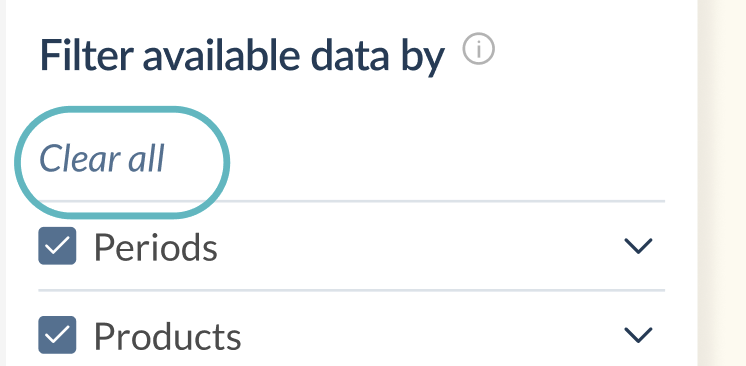
To remove a filter, simply uncheck the box next to the selected item or click the "Clear All" at the top left of the categories.
Step by step to searching for data
Located at the top of the screen, the search bar allows you to quickly find specific data related to keywords, products, regions, or other terms.
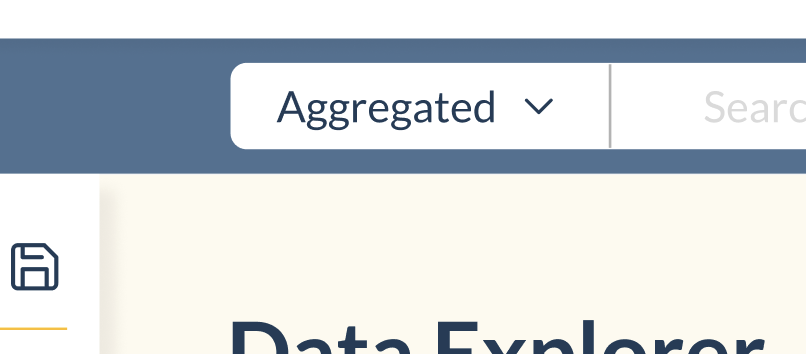
Choose the appropriate data type from the dropdown menu. This tells the system where to look for your search term.
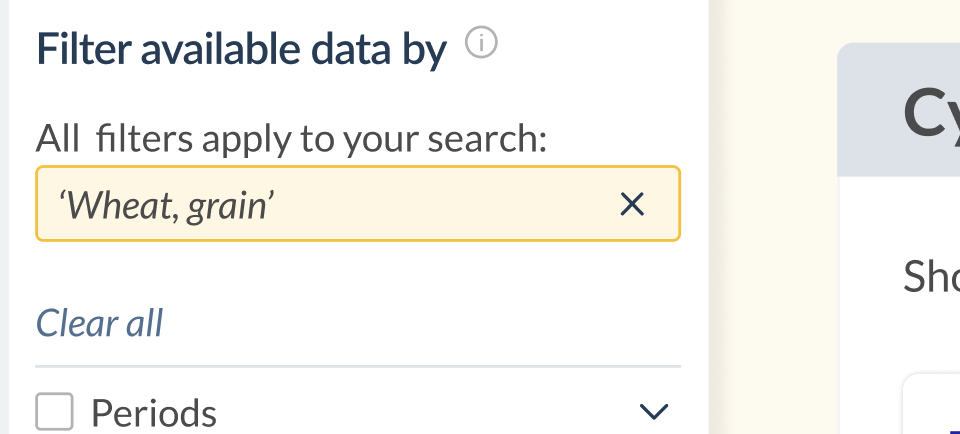
Selecting a data type will automatically update the same data type within the Filter Panel. This ensures you’re only seeing relevant filters for the type of data you’re searching for.

Type your search term into the search bar.
When entering your search query in the search bar the search term will also be shown under ‘All filters apply to your search:’ in the filter panel. This ensures that all filters applied at this point are related to your search query.
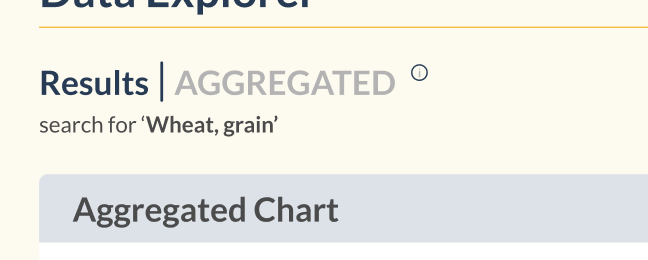
The result listings will automatically update to reflect your search term and selected data type.